1 min lezen
# TeleportHQ
**You can embed calendars from Bookingmood in** **[TeleportHQ](https://teleporthq.io/)****.**
## Create a widget
- You will need to create a widget in Bookingmood first. Learn how to create it here: [Creating a widget](https://www.bookingmood.com/en-US/docs/widgets/create-a-widget).
- Click on _Embed_ and copy the _Inline_ embed code. You will need this in the next step.
## Add the widget to your TeleportHQ project
- Add an element by clicking on the + button.
- Drag and drop the _Code Embed_ element into your page.
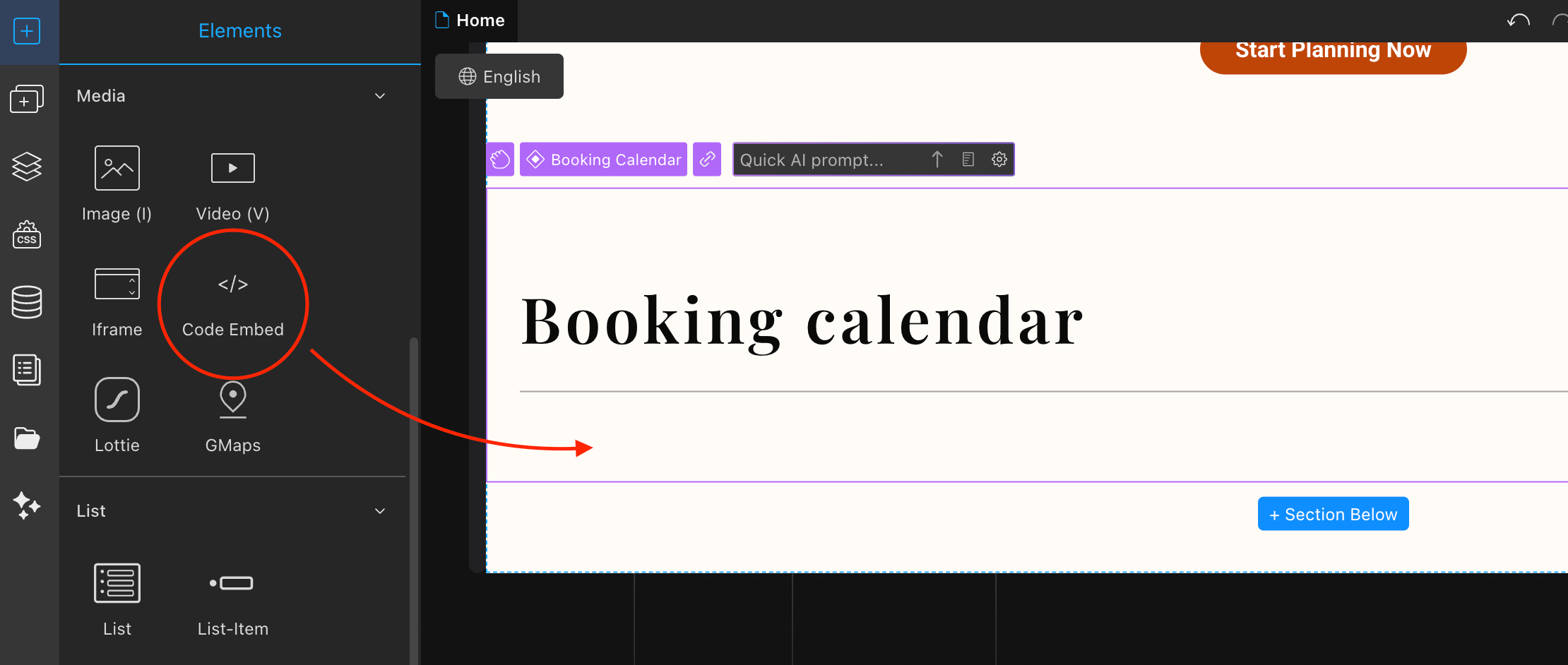
- Paste the iframe-part of the embed code you copied.
```
```
- Save it.
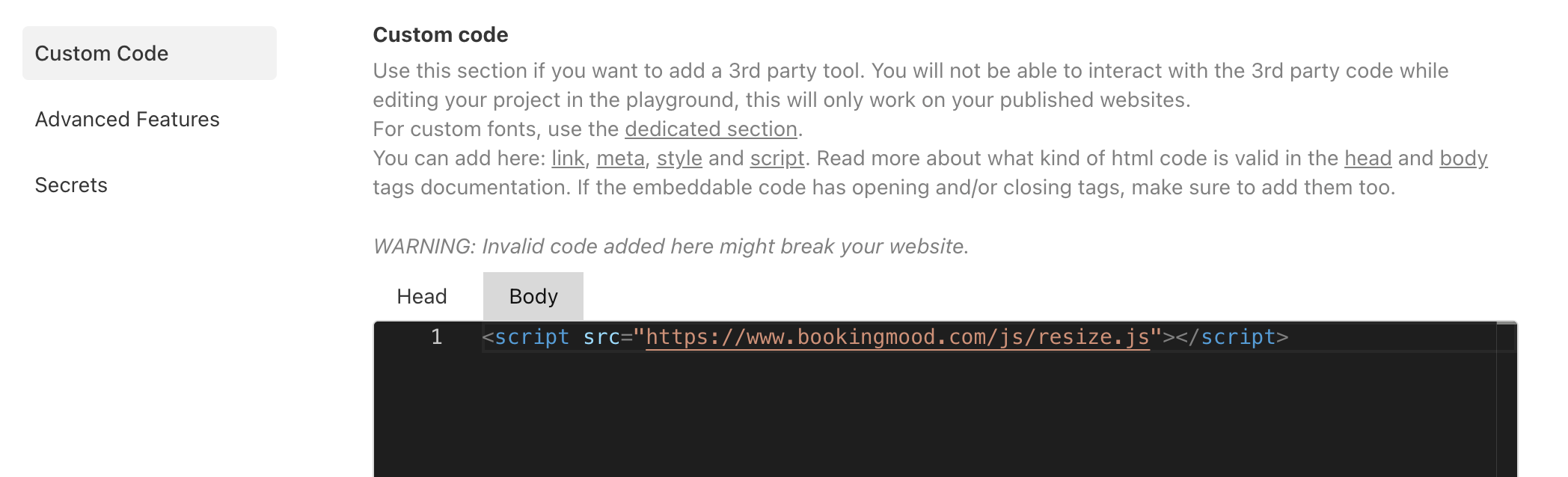
- Open the project menu and click on _Project Settings_.

- Click on _Custom Code_.
- Add the following code in the body section:
```
```
- So it looks like this:
- Save it.
> Note that the calendar may appear cut off or may not display correctly in the TeleportHQ editor. Please check the live, published website to see how it is displayed correctly.
**🎉 You're done and everything is set! Changes you make to your calendar will automatically reflect on your website.**
Laatst gewijzigd 31 augustus 2026