3 мин читања
Agencies
Are you an agency, building websites for clients? On this page we explain how you can use Bookingmood when working for clients.
Organizations
When you sign up for Bookingmood you are also setting up an Organization within Bookingmood. For normal users this would be something like Sunny Lofts Ibiza or Speedy Campers or just the name of the only unit. An Organization can have one or multiple units and one or multiple users. You can create multiple Organizations. One for your agency (to test with) and one for every client! And that's why Bookingmood works perfectly for agencies.
How to use Bookingmood as an agency with clients
Bookingmood is designed with agencies in mind. Here's how it works.
Step 1: Create an Organization for your agency
You can create an Organization within Bookingmood with the name of your agency. Once you did that, please send us a message at support@bookingmood.com and we'll convert that Organization to a Booking plan, for free 🎉! This way, you can demo Bookingmood to your clients. You can add fake rentals, make fake booking enquiries, and so on! All under your agency account.
Step 2: Create an Organization for every client
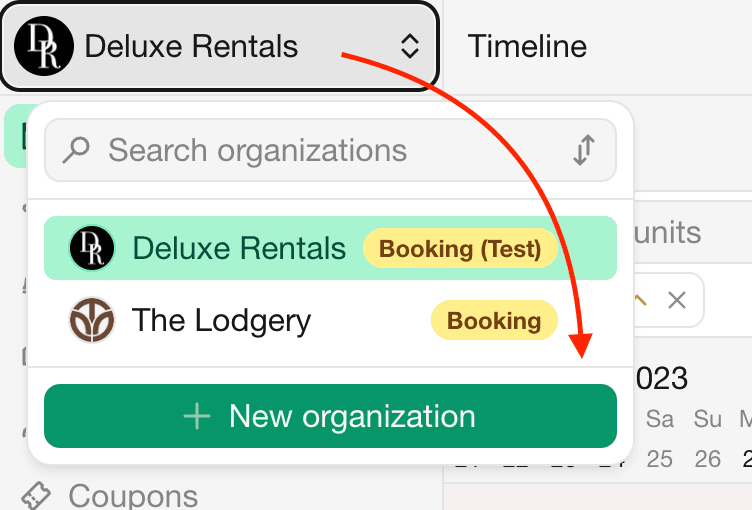
Did you impress your client with Bookingmood? Awesome! You can now create a new Organization for your client. Click the name of your current organization at the top of the side navigation and click New organization.
Fill in your own referral code in the Referral code field. It's filled in for you when you entered a referral code while signing up, and you can change or clear it. With your referral code, your client gets the longer trial of your partnership, counted from the day you create the organization, and you earn your fee on the subscription your client starts later.
Forgot the referral code? A Superuser can still add or change it in Settings › Subscription until the organization starts a subscription. If the organization is still in its trial, the trial is extended to the trial length of your referral code.
Step 3: Add the client to the Organization
After the Organization is created, add your client as a member. Go to Settings › Team and click New member. Give them the role Superuser. See Roles and permissions.
You and your client can now both manage the Organization. And you can switch to other Organizations, from yourself or your clients, with two mouse-clicks!
Step 4: The client orders a subscription
Because you created an Organization for the client, and added the client as a Superuser, they will now be able to order a subscription themselves. Let your client start the subscription in Settings › Subscription, so they pay for it with their own payment method.
Step 5: The client checks the billing details
Invoices are addressed to the name, email address and address entered when the subscription started. To change them, go to Settings › Subscription and click Edit billing details. There you can change the name, email address, company name, VAT number and address. The changes apply to all future invoices, so this is also the way to hand over a subscription you started for your client.
Reseller program
Besides our affiliate program, we also offer a reseller program for agencies. When you onboard your clients on Bookingmood and give first line support, you will earn a recurring 25% revenue fee on every client subscription. The fee is linked per organization, through the referral code of that organization (see step 2). Contact us at support@bookingmood.com for more information!