
TeleportHQ
Add Bookingmood booking calendars to your TeleportHQ website
Add Bookingmood to your TeleportHQ website so guests can check availability and book your rental without leaving your site. You set it up once, and every change you make in Bookingmood shows on your website automatically.
Create a widget
Create a widget in Bookingmood. Widgets explains how.
Click Embed and copy the Inline embed code. You need it in the next step.
Add the widget to TeleportHQ
TeleportHQ doesn't run scripts inside a code embed, so you add the widget and the script that sizes it separately.
Click the + button to add an element and drag the Code Embed element onto your page.
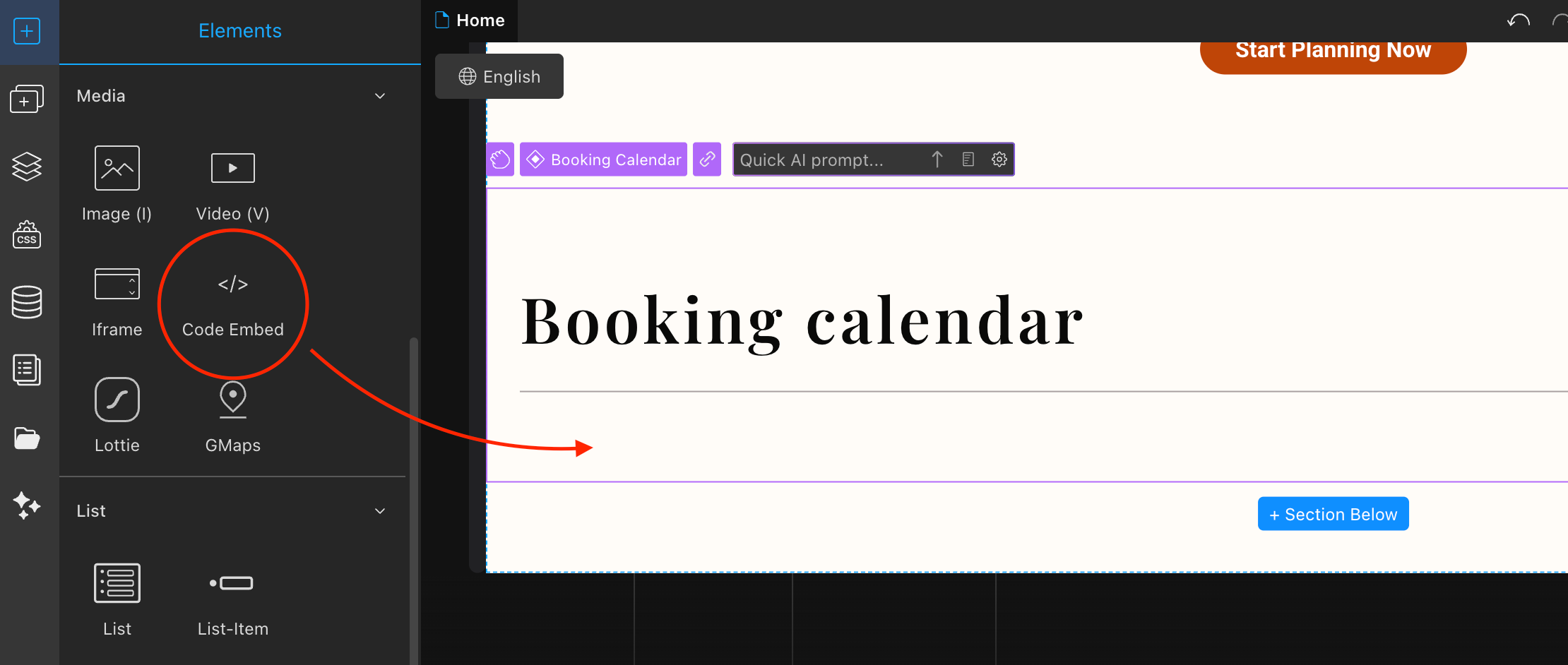
Paste only the iframe part of the embed code you copied. It looks like this:
<iframe
  src="YOUR-EMBED-URL"
  style="width:100%;border:none"
></iframe>
Save your changes.
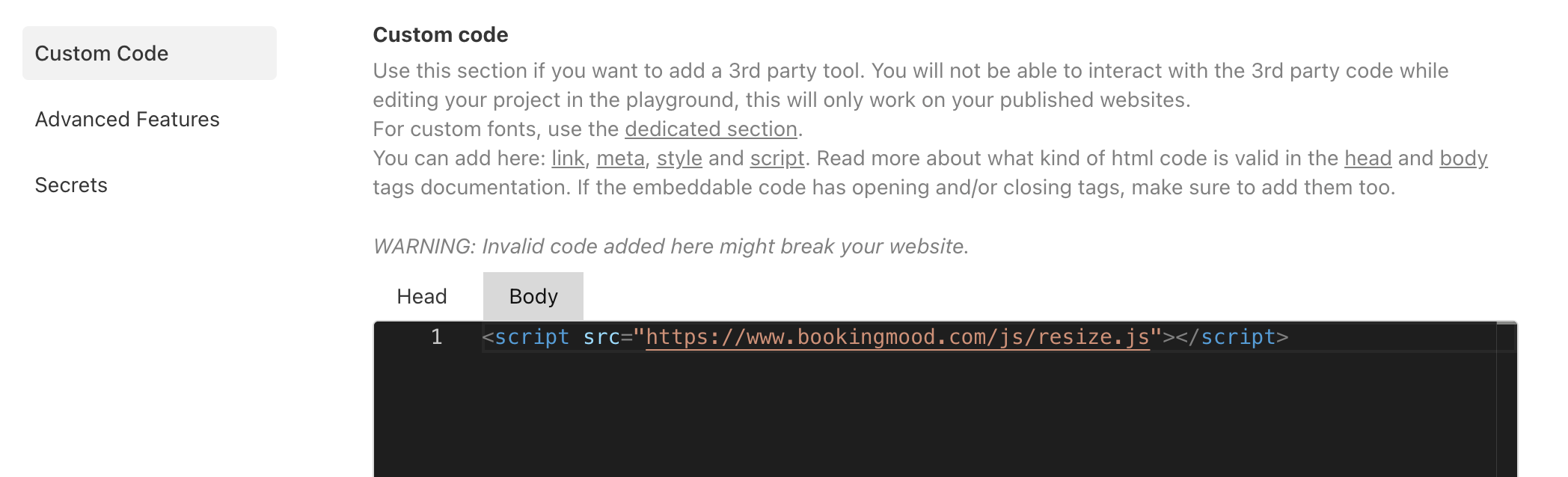
Open the project menu and click Project Settings.

Click Custom Code and add the following code to the body section:
<script src="https://www.bookingmood.com/js/resize.js"></script>
Save your changes.
That's it. Changes you make in Bookingmood now show on your website automatically.
FAQ
Why does the calendar look cut off in the editor?
The TeleportHQ editor doesn't size embedded widgets correctly. Publish your site and check the calendar there; it should display normally.