Booking forms
Build your own booking form. Guests can fill out and submit these forms to make a booking. You can also add rates to booking form fields. Like a checkbox Breakfast, which adds a price to the booking once checked.
Edit a booking form
To edit a booking form, open a unit and click on Booking form.
Contact details
Here you can select the fields that are related to contact details. These fields are not editable. The fields will be used to store all contact information under, which can ultimately be found under Contacts in the main menu of the dashboard. Every person that makes a booking will be stored as a Contact, using the fields that are enabled in the Booking form.
Booking details
Here you can add custom fields:
| Field | Description |
|---|---|
| Short text field | Single-line text input field |
| Long text field | Multiple-line text input field |
| Number field | Field which only accepts a number |
| Time field | Field which only accepts a time notation, e.g. 10:15 |
| Checkbox field | Checkbox which can be checked and unchecked, can contain a 💰 price |
| Multiple choice | For selecting between multiple options, can contain 💰 price |
| Fee / description | Show a message or add a 💰 price that isn't optional, like a required end cleaning fee |
Add an attachment to a field
Every field can contain an attachment, like a PDF file. The website visitor will be able to view an download this attachment.

Add a fees
You can add fees, like a tourist tax, end cleaning or optional packages in the booking form. Please look at the examples very carefully.
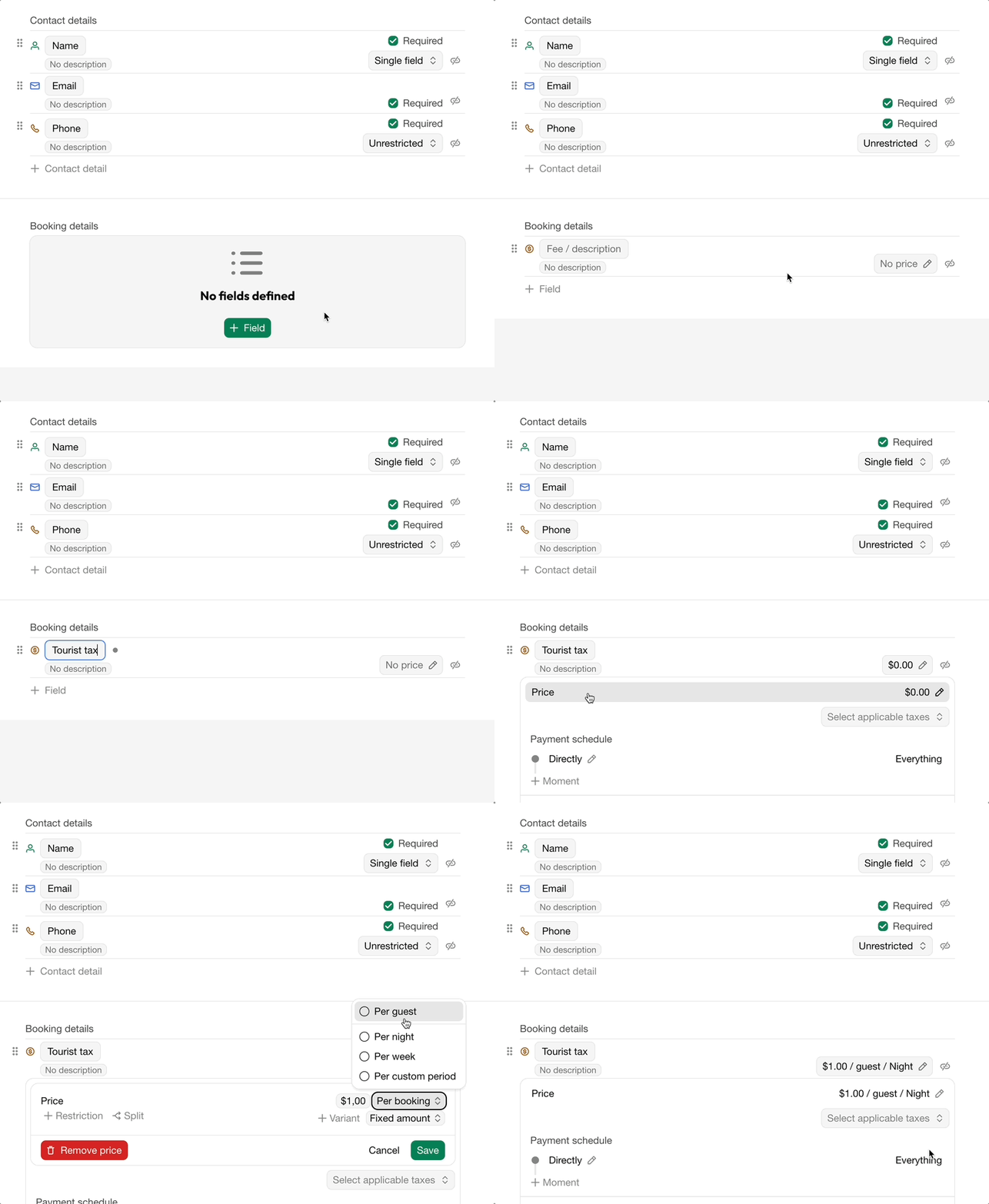
Tourist tax per guest per night
Because a tourist tax doesn't need any user input and is usually required, you must use the Fee / description field.
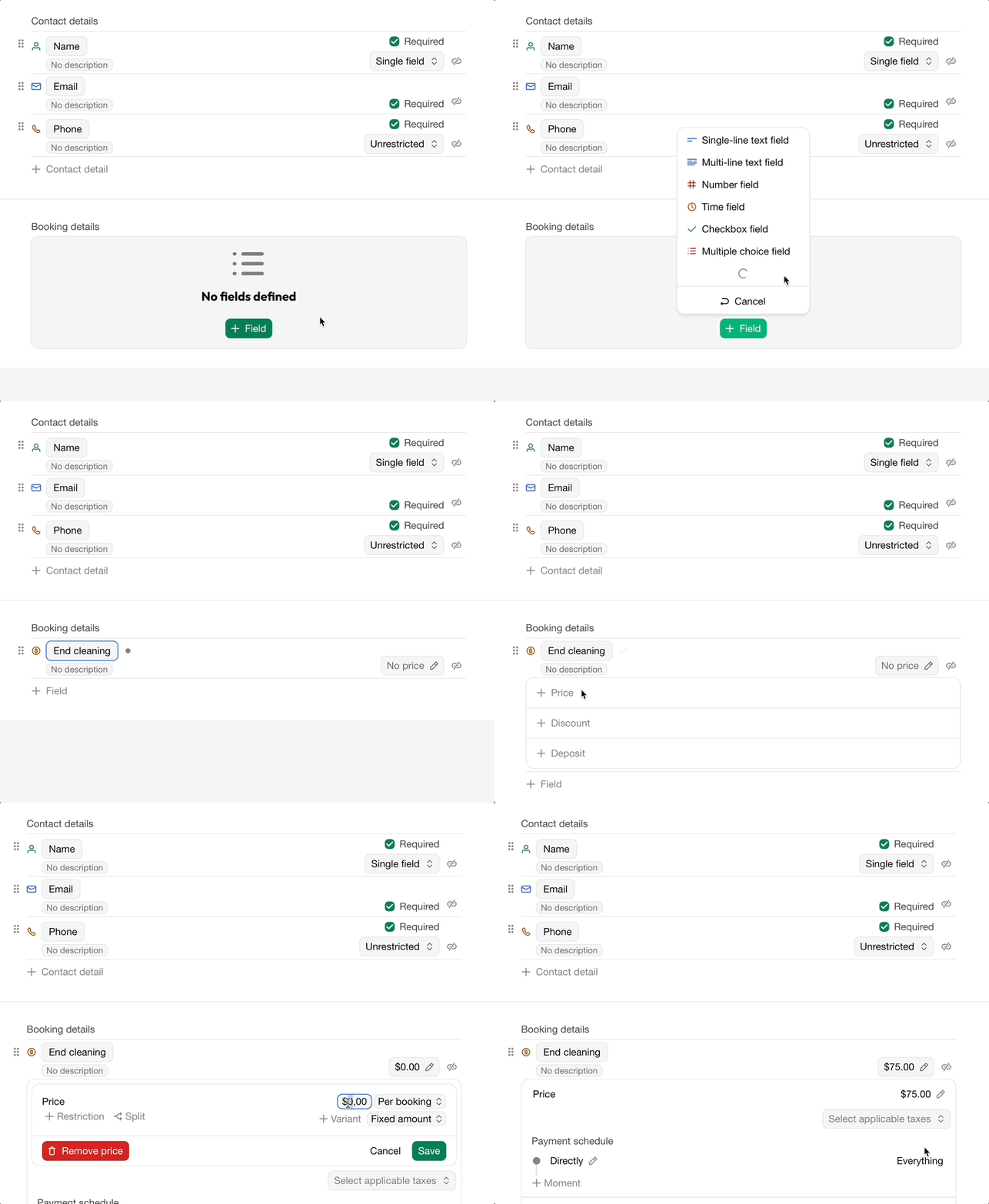
Fixed end cleaning fee
You can add it as a Fee / description field, just like the example above. Set the price to *Per booking *by not selecting any options.
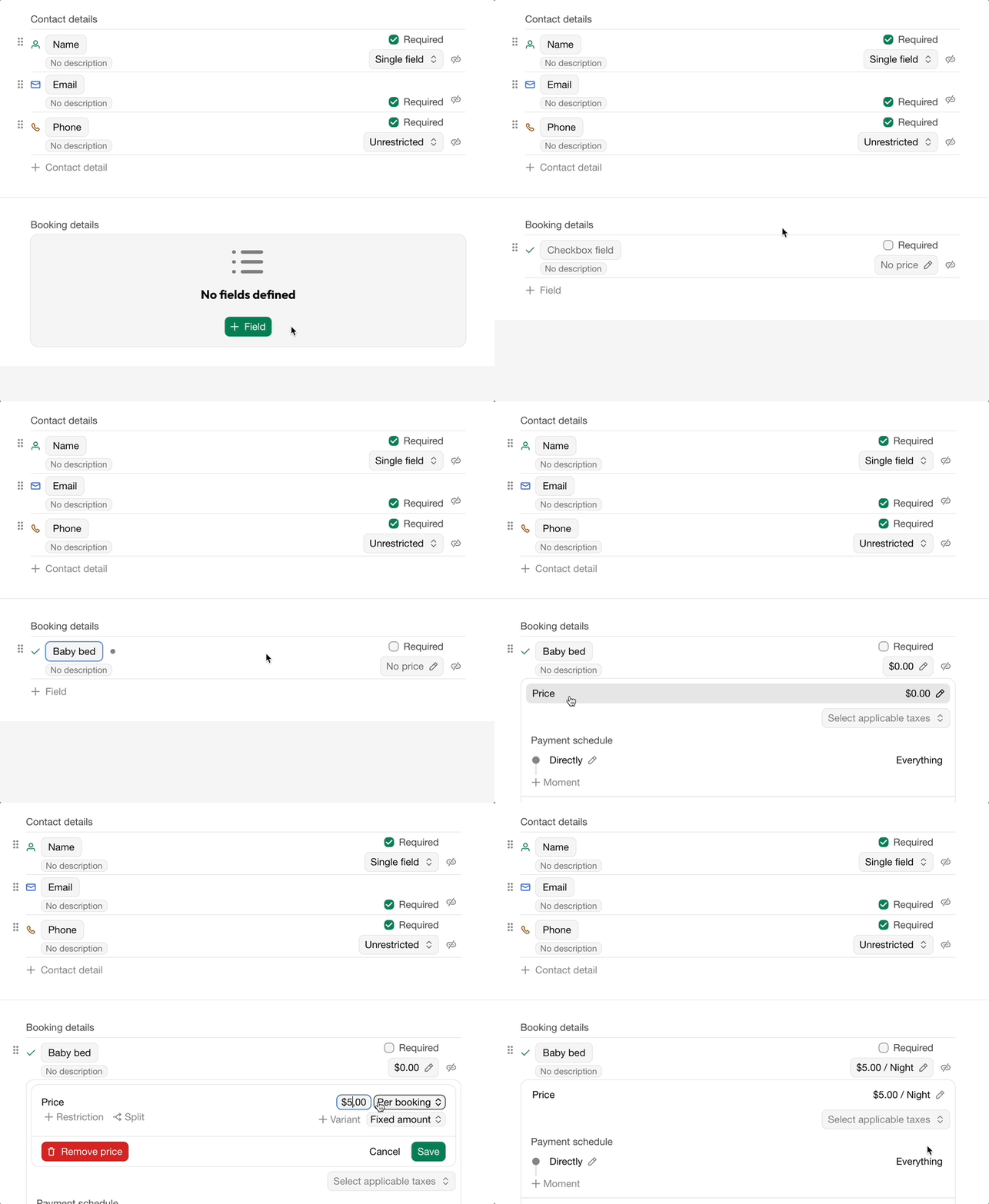
Optional baby bed
To allow guests to book an optional baby bed, use the Checkbox field. Guests can select this option when making a booking. If checked, the fee will be added to their reservation; if left unchecked, no additional charge will apply.
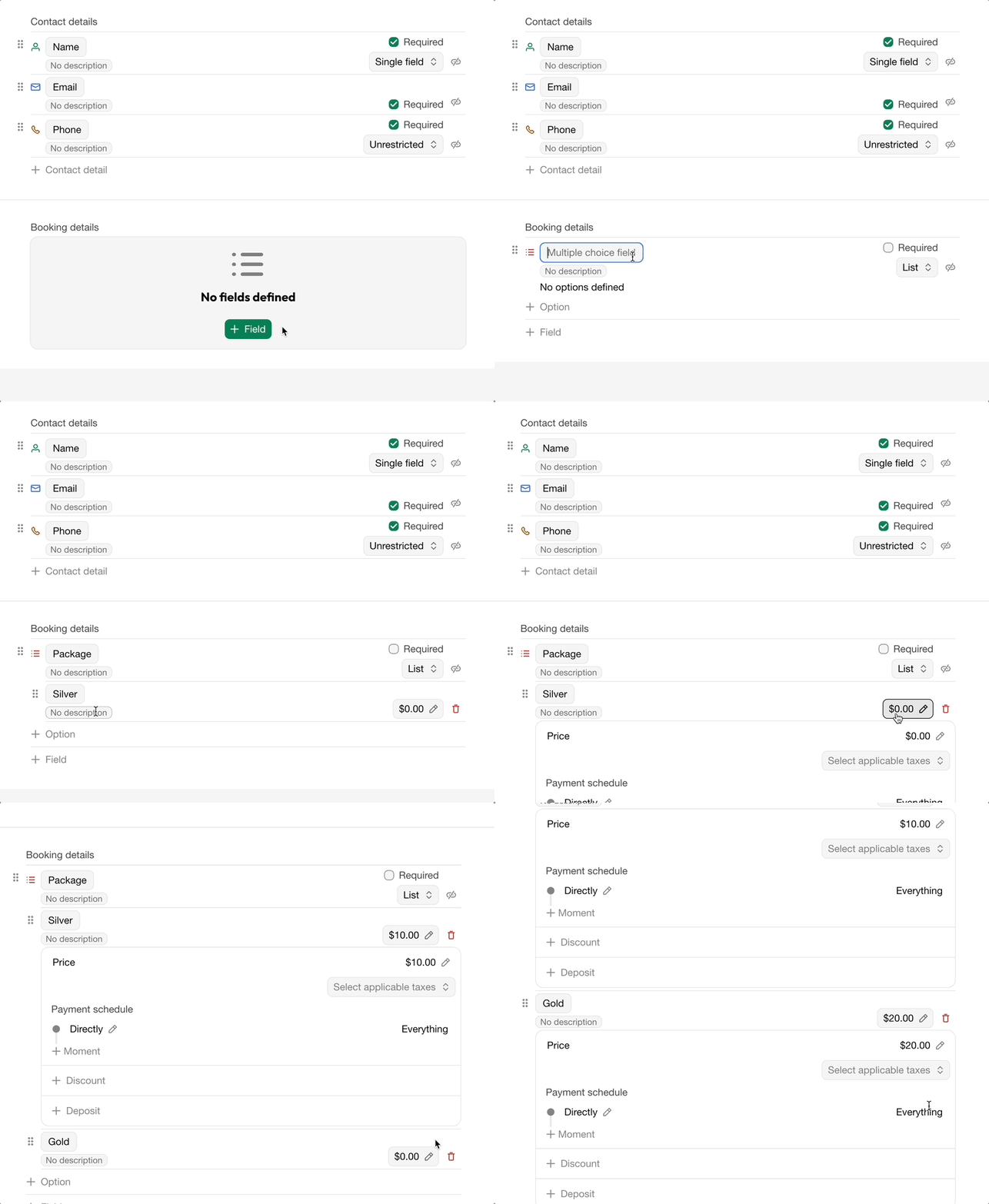
Packages
If you offer various packages, options or additional things to top up your booking, you can use the Multiple choice field to add them.
Set up Taxes
You can apply taxes, like VAT, GST, Sales tax or other taxes to all your prices in Bookingmood.
Apply tax to a price
Open a unit and click on Booking form.
Click on Rent.
Below Price, click on Select applicable taxes.
Create or select an existing tax.
If you choose On top of price, then the tax will be added on top of the prices and rates that you've set up. If you select Included in price, then the prices and rates that you've set up also include the tax.
FAQ
My booking form is empty, guests can't see or fill in any fields. Make sure you have added booking form fields to the booking form.
Open a unit and click in Booking form.
Add form fields.