Scheduled messages
You can send emails and text messages (SMS) to your guests. The messages can be sent manually, but some parts can also be automated.
Add an automated message
Open a unit.
Click on Message schedule.
Click on the + plus near an event, or click on + Scheduled email or + Scheduled SMS at the bottom of the page.
Choose the moment and settings.
Add the subject and content of the message.
Use the + button in the editor to add elements and variables!
Choose what the email should include further by clicking on the + button below the editor.
Variables in a message
A variable is a placeholder that will be replaced by actual data when you send the message. For example, when you add {{arrival_date}} into a template, this piece will be replaced by the actual arrival date of the booking. Like September 19, 2026. You can add a variable by clicking on the + icon in the editor.
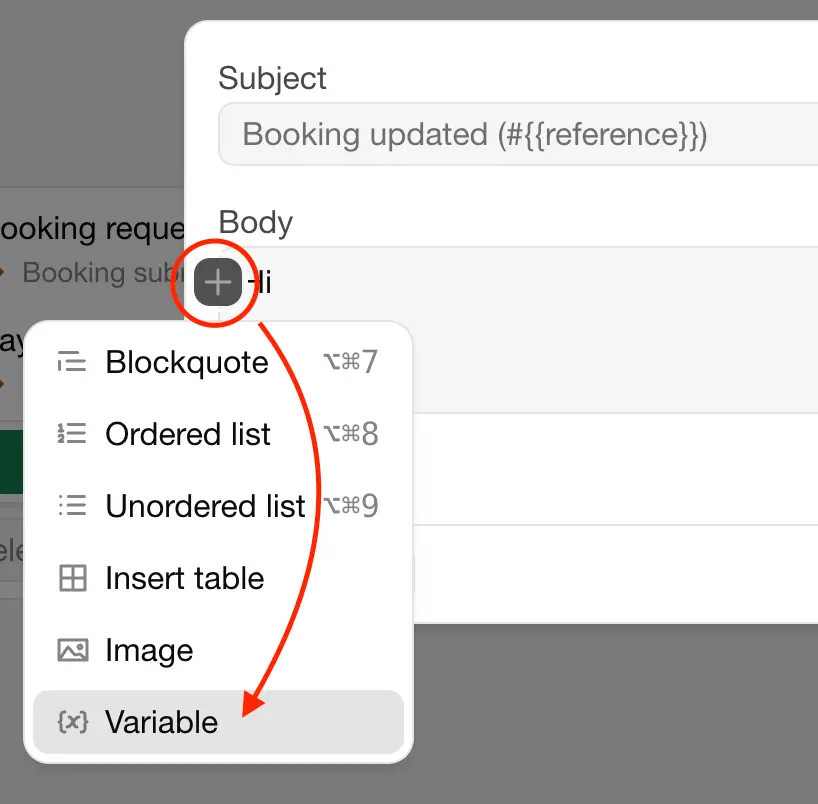
Variables
| Variable | Description |
|---|---|
{{address}} | The address of the guest |
{{arrival_date}} | The arrival date of the booking |
{{departure_date}} | The departure date of the booking |
{{duration}} | The duration of the booking in nights or days |
{{email}} | The email address of the guest |
{{first_name}} | The first name of the guest |
{{guest_url}} | The link to the guest page |
{{last_name}} | The last name of the guest |
{{name}} | The full name of the guest |
{{organization_name}} | The name of your Organization |
{{phone}} | The phone number of the guest |
{{product_name}} | The name of the rental unit |
{{reference}} | The reference of the booking |
{{subtotal}} | The subtotal amount of the booking |
{{total}} | The total amount of the booking |
{{occupancy_x}} | The amount of guests of the capacity group |
Variables in invoice related emails
| Variable | Description |
|---|---|
{{invoice_reference}} | The reference of the invoice |
{{invoice_date}} | The date of the invoice |
{{invoice_total}} | The total amount of the invoice |
Variables in payment related emails
| Variable | Description |
|---|---|
{{payment_total}} | The total amount of the payment |
{{payment_paid}} | The amount that is paid |
{{payment_due_at}} | The due date of the payment |
Add extra info to the email
| Item | Description |
|---|---|
| Image of rented unit | The first image that you've uploaded to the unit, under Appearance. |
| Booking details | All the information about the booking. |
| Link to guest page | Add a link to the Guest page with more details about the booking. |
| iCal data | Attachment in iCal format that people can open to add the booking to their calendar |
| Upload file | Upload attachments to the email, like a PDF with terms and conditions |
The message is now linked to the unit that you're editing. You can reuse this message to for other units as well.
Manage all email and SMS templates and messages
Click on More > Message templates.
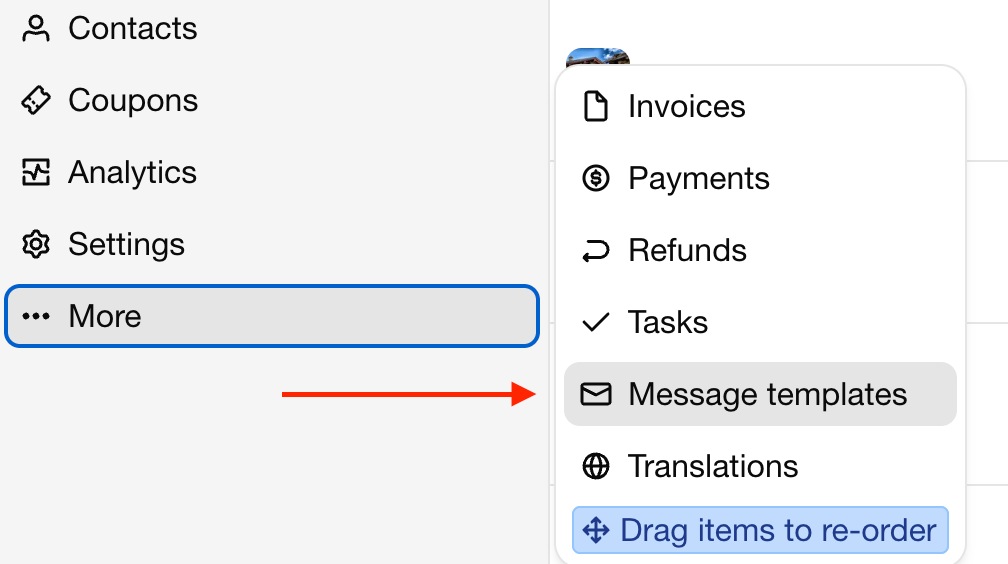
From here you can manage all emails and SMS messages and templates.
See what messages are scheduled for a booking
You can see what messages are going to be sent within a booking.
Open a booking.
Click on the Messages tab or Expand the booking.
Find the automated message in the message window.
Email settings
You can edit various email settings at the Settings > Email page, like:
Show or hide Bookingmood branding in emails
Email grouping
Sender address and custom domain