Booking payments
You can let guests pay for their booking. You can let the guest pay directly online, an x number of days before arrival, or on arrival. Or a combination of these. The money that guests pay will be received by you directly. Bookingmood is not in between and no commissions are charged by us.
How guests pay for their booking
Booking request
A visitor makes a booking request.
The booking will have the Pending status.
The guest can see the status of their booking on their guest page.
You can generate the invoice of the booking, which will be added to the guest page.
You can confirm or cancel the booking manually, or automatically when the initial payment is received in the Settings of the unit.
Instant booking
A visitor makes a booking.
The invoice will be generated directly and the guest will be asked to pay to complete the booking.
After the initial payment, the booking will be Confirmed automatically.
Payment providers
Bookingmood currently supports 3 payment providers:
Stripe
Square
Mollie
This article only covers Stripe.
Set up Stripe
Per organization you can connect one Stripe account.
Go to Settings > Financial.
Near Payment method, select Stripe.
Follow the steps to connect Stripe.
When Stripe is connected, people can pay the invoices online via the guest page. When an invoice is paid, Bookingmood will automatically mark it as paid.
Edit settings in Stripe
You can edit the payment methods and customize the check-out page in Stripe. Before you do that, make sure you're working in the correct account.
Click on the account name on the left top.
Select the account that's connected with Bookingmood.
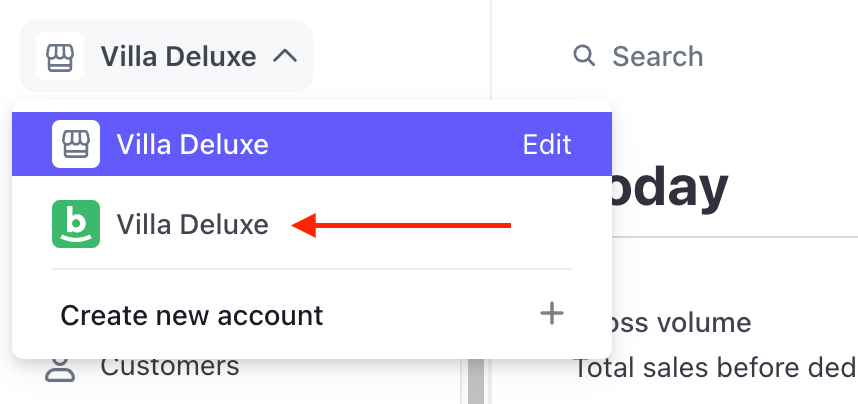
Change the payment methods in Stripe
Do you want enable or disable payment methods like card payments, iDeal, Sofort, and so on?
Go to your Stripe dashboard.
Click on Settings ⚙️ icon on the right top.
Click on Payment.
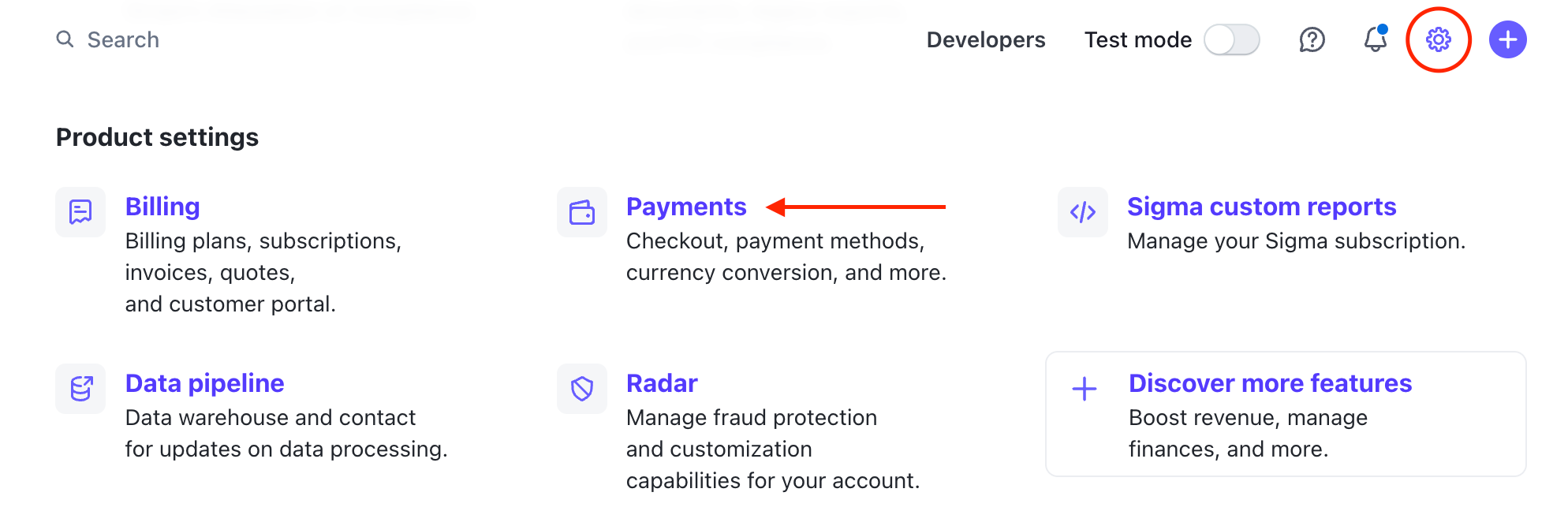
Click on the tab Payment methods.
Select Default below Bookingmood configurations.
Turn on the payment methods that you want to use.
It's not possible to use PayPal with Stripe Connect. Read more.
Change the logo and colors of the Stripe check-out page
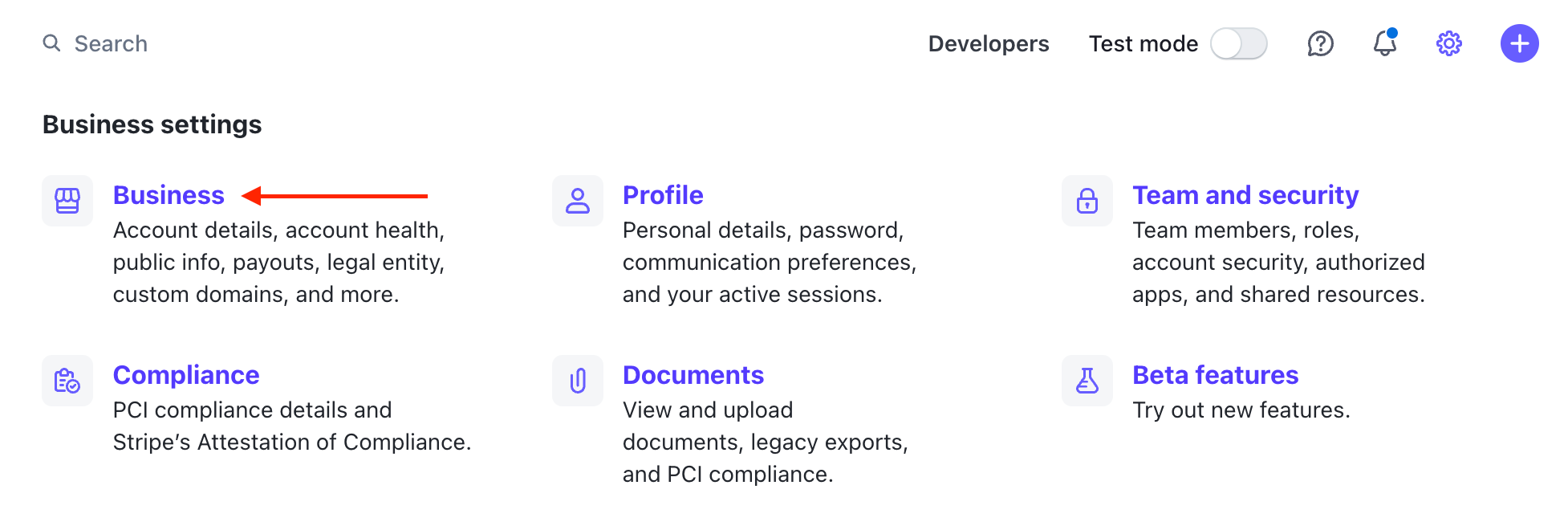
Go to your Stripe dashboard.
Click on Settings ⚙️ icon on the right top.
Click on Business.
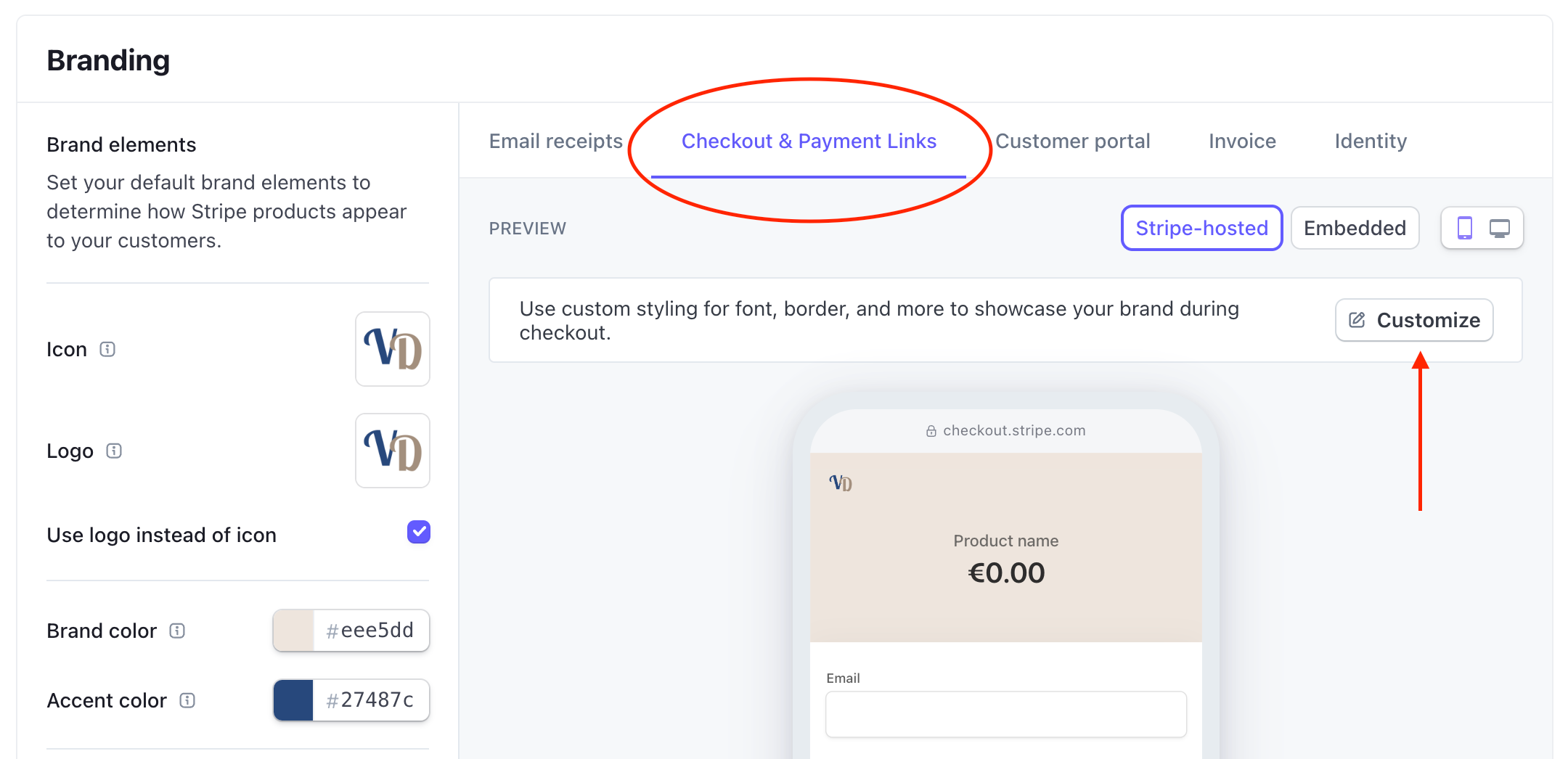
Click on Branding.
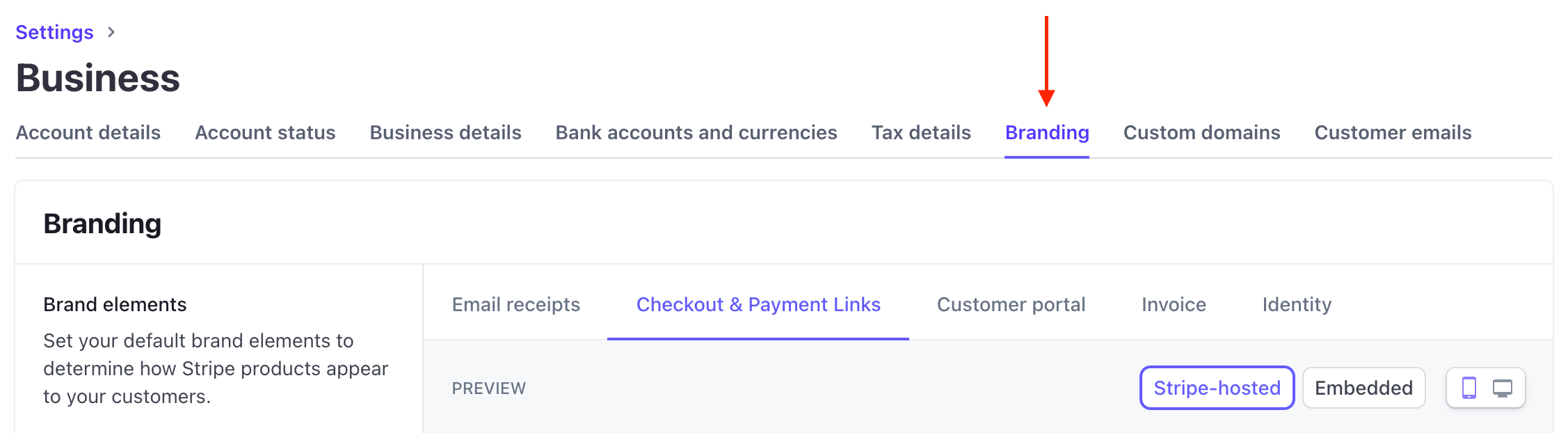
Upload your own icon, logo and apply your colors.
Click on the tab Checkout & Payment links.
Click on Customize.
Check the Use brand colors field.
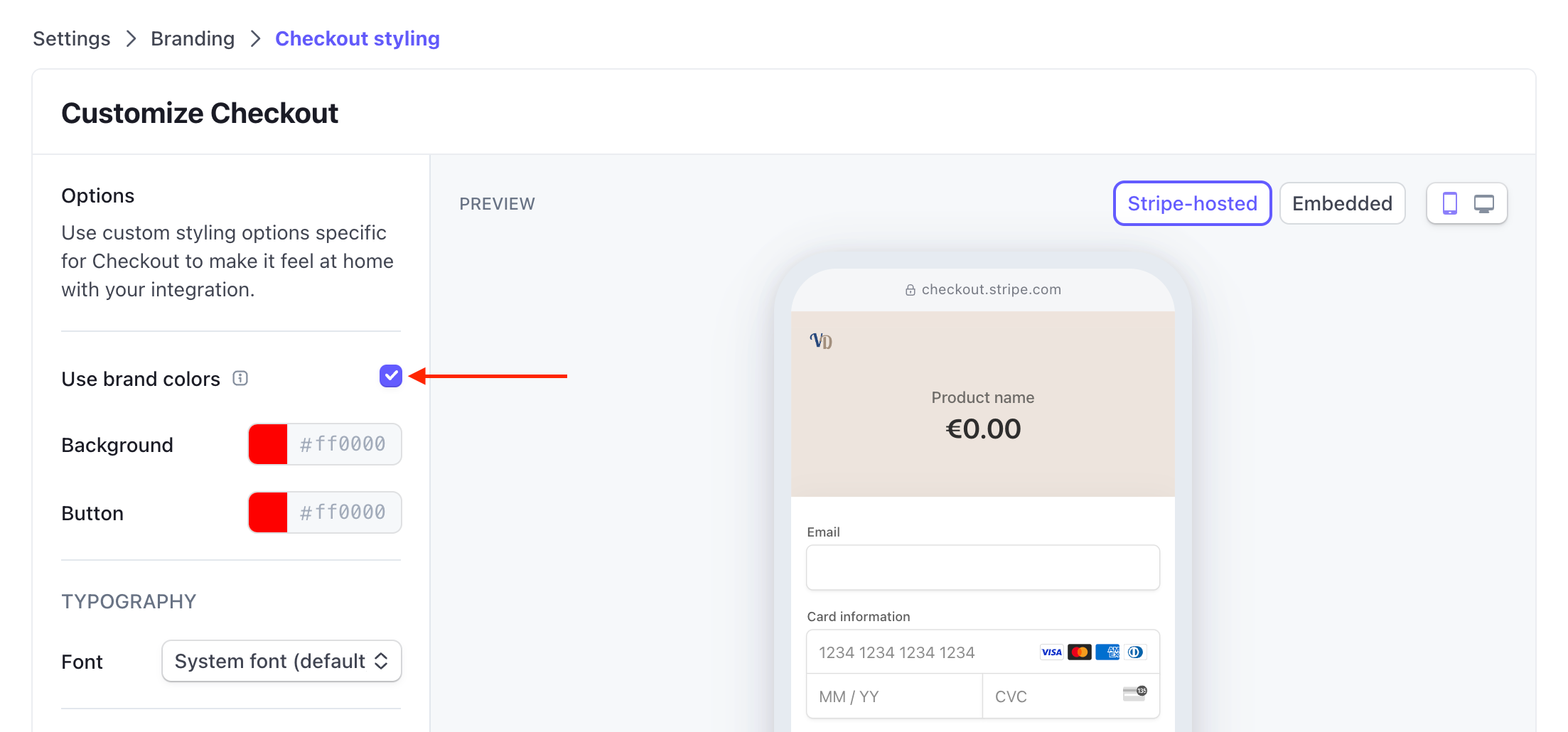
Click on Save changes.
Bank transfer for booking payments
You can add your bank details and let your guests pay manually by your instructions. This also means that you have to check whether guests have paid, manually. And then update it in Bookingmood, manually.
Payment link for booking payments
You can add a payment link (for example from PayPal), and send that payment link to your guests via Bookingmood. This also means that you have to check whether guests have paid, manually. And then update it in Bookingmood, manually.
Invoice details
You can edit the data that you want to be on the invoice by default, like a company name, address and VAT number.
Go to Settings > Financial.
Fill in the Seller details and Invoice footer fields.
Guide
Check out the step-by-step guide about how to use Bookingmood as a booking system.