Scheduled messages
The message schedule sends emails and text messages automatically, at moments such as when a booking is received, a week before arrival or after departure. Each unit has its own schedule; messages can be shared by several units.
Add a scheduled message
Open a unit and go to Message schedule.
Click Scheduled email or Scheduled SMS. Choose a New template, or an existing Message template to reuse a message from another unit.
Choose when it's sent: on a Trigger, such as Booking confirmed, or at a moment relative to the stay, such as 7 days before arrival.
Choose for which bookings: Tentative and confirmed bookings or Confirmed bookings only.
Write the subject and message. Use the + buttons to add variables, booking details, a link to the guest page or attachments.
During the trial, guests get the default texts of messages with a trigger, without attachments. Your own texts and scheduled messages without a trigger are sent once you start a subscription.
When a booking's last stay is deleted, its messages that haven't been sent yet are deleted too.
Triggers
| Trigger | Sent when |
|---|---|
| Booking request received | A guest sends a booking request. |
| Direct booking received | A guest makes an instant booking. |
| Booking confirmed | A booking is confirmed. |
| Booking changed to pending | A booking is changed back to pending. |
| Booking cancelled | A booking is cancelled. |
| Invoice created from admin | You generate an invoice. |
| Payment due | An online payment is still unpaid when its due date has passed. See below. |
| Automated payment received | An online payment is received. |
| All automated payments completed | All online payments of the booking are received. |
| Manual | Never automatically: a template to send by hand. |
Which trigger covers which payment
Each payment of the payment schedule is requested by one message:
The first payment, when it's due right away, for example At confirmation or At invoice creation: the guest pays it while booking, or gets the request with Direct booking received, Booking confirmed or Invoice created from admin. That depends on how the booking was made.
Every payment that's due later, for example 30 days before arrival or 2 days after invoice creation: Payment due, sent once the due date has passed and the payment is still unpaid.
Payment due is sent once per payment, at most an hour after the due date. A payment that was already due when it was created, such as a first payment At confirmation, gets Payment due 24 hours later if it's still unpaid. That makes it a reminder, not the first request. Installments paid On-site never get Payment due.
Example: the rent is paid in 2 installments, 30% At confirmation and the rest 30 days before arrival. A guest books directly 3 months before arrival.
| Payment | Due | Requested by |
|---|---|---|
| 30% | At booking | The payment step of the booking form and Direct booking received. If it's still unpaid a day later: Payment due. |
| 70% | 30 days before arrival | Payment due, on that day, if the guest hasn't paid yet. |
If the guest books 20 days before arrival, the second installment is due right away as well, so it also gets Payment due a day later if it's still unpaid.
For a booking request, you create the invoice from the booking yourself. Invoice created from admin then requests the first payment, and Payment due the later ones.
Messages for existing bookings
When you add a message with a moment relative to the stay, Bookingmood asks whether to schedule it for existing upcoming bookings of the unit too. For moments that already passed, choose Skip when scheduled in the past or Send immediately when scheduled in the past.
To see what's scheduled for a booking, open the booking: scheduled messages are shown in its history.
Message templates
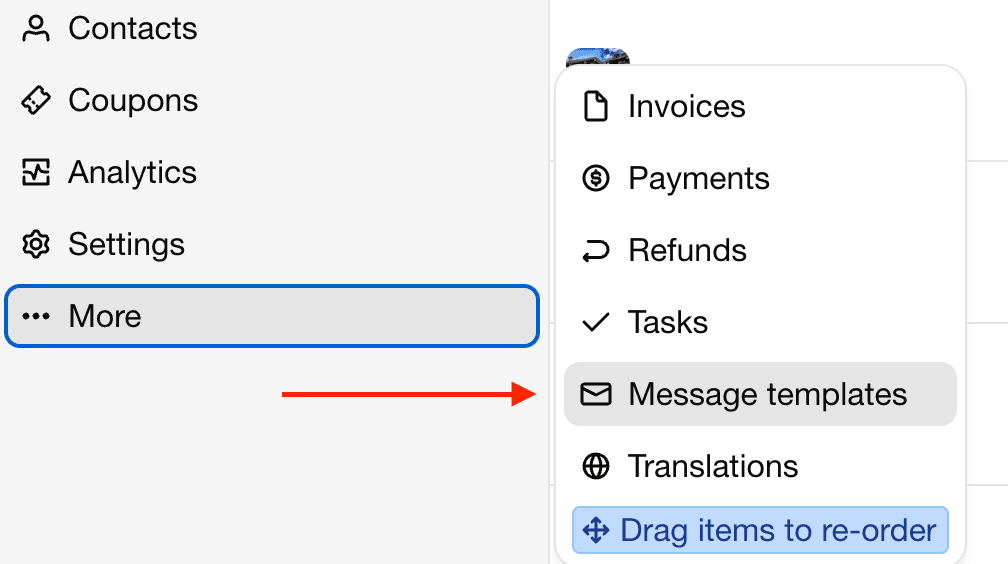
Go to Message templates to see the messages of all units. Filter by type and trigger, edit a template, choose the Units it's scheduled for, Duplicate it or Delete it.
To stop sending a message for one unit, open the unit's Message schedule and click Unlink from unit. This also removes the scheduled messages for that unit's bookings.
Text messages
Scheduled SMS messages need SMS access, see SMS.
Last modified November 11, 2026