Add a team member
Work together with clients, colleagues and staff. Adding team members is free. We don't charge for members. You can add as many members as you like.
Add a member
Click on Settings > Team.
Click on + New member.
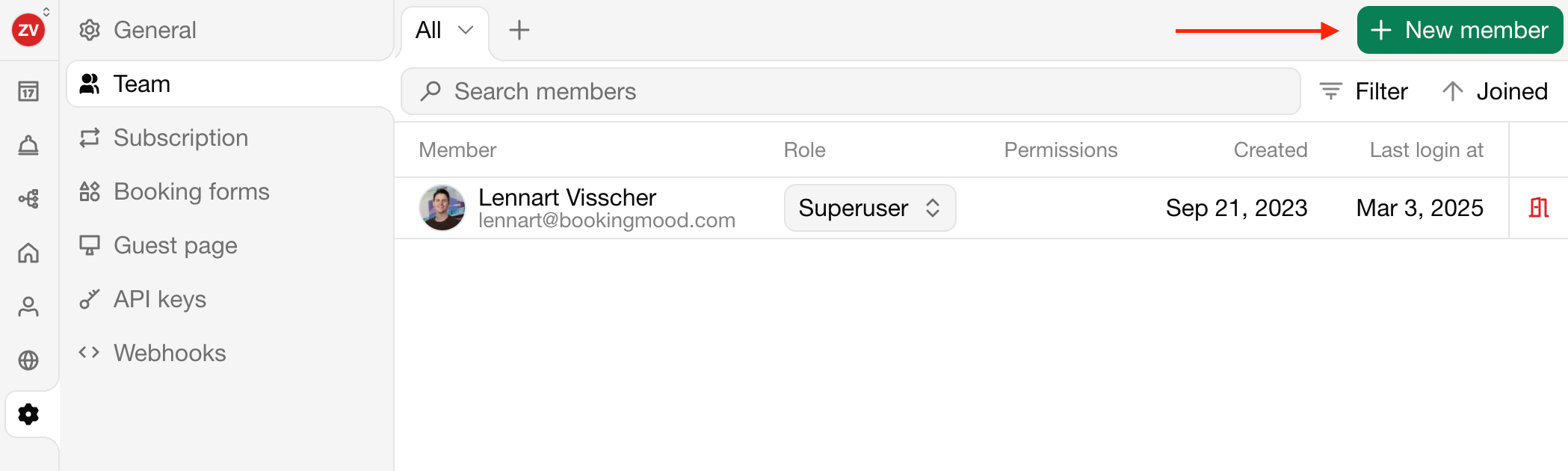
Apply the desired settings.
Click on Invite to organization to add the member.
The member will now receive an email. Invited members can create an account on Bookingmood and will automatically be added to the Organization, without having to create one themselves.
Fields
| Field | Description |
|---|---|
| The email address of the new member | |
| Role | The role of the new member |
| - User | Permissions will be assigned per unit. |
| - Admin | Can access everyting except the billing settings. Cannot upgrade or downgrade the organization |
| - Superuser | Can access everything in the organization |
| Permissions | The permissions of the new member, per rental (when it's as User) |
Permissions
When you add a User, you can apply specific permissions.
Bookings
No access: No access to bookings.
Maintenance: Special permissions for for cleaners and maintenance staff.
View: Only view bookings, not edit.
Manage: View and manage bookings.
Notifications
No access: No notifications can be enabled.
Non-financial: Only notifications that are non-financial can be enabled.
Full access: All notifications can be enabled.
Settings
No access: No settings of the unit can be managed.
Full access: All settings of the unit can be managed.